Workspaces
All your open sessions in one window.
SSH sessions, local shells, RDP and VNC desktops and AI agents all fit into the same tabs and splits. Every pane is its own live session. When you like a layout, save it and open it again later.
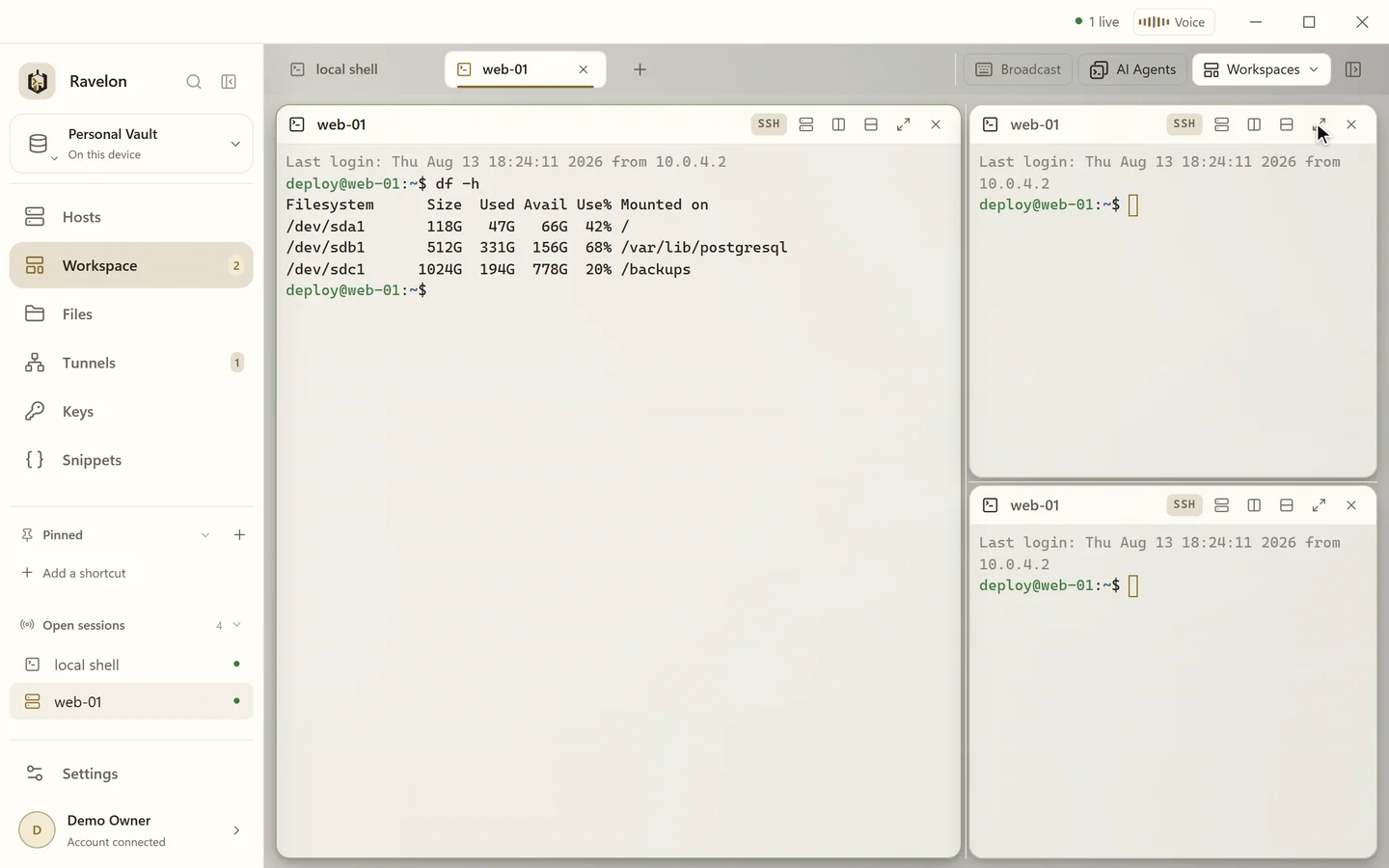
01
Shells, desktops and agents side by side
Put shells, remote desktops and coding agents next to each other, drag them around, resize them, and blow one pane up to the full window when you need the room. Switch to another page in the app and come back: the command you started is still running and the scrollback is still there.
“Tail the logs, watch the deploy and keep the Windows server behind it in view.”
02
Save the layout, open it again later
Give the current layout a name and you'll find it under Connections, Saved workspaces. Opening it brings everything back with fresh sessions: SSH shells reconnect, remote desktops come back and agents start in their project folders.
- Reopen your last tabs when Ravelon starts, if you like
- Closed a tab by accident? ⌘⇧T or Ctrl+Shift+T brings it back with its layout and hosts
- An ended SSH pane remembers its host, so Enter reconnects
- Pin hosts and saved workspaces to the sidebar
03
Change the layout without reconnecting
Split the active pane to the right or down, then move panes, resize them or rename tabs. Nothing reconnects. You also decide where a new connection opens: in a new tab, in a split, or in place of the pane you're in.
- Rearranging panes never restarts their sessions
- Each pane shows whether it's connected, reconnecting or closed
- ⌘1 to ⌘8 or Ctrl+1 to Ctrl+8 jump to a tab, middle-click closes one
- Broadcast what you type to every terminal in a tab
04
The sidebar next to your sessions
The workspace sidebar holds your connections, the AI Agents launcher, snippets, the Ravelon Agent, host notes and a system monitor. Notes are plain text per host, stored encrypted in the vault and synced with it. The system monitor gives you a quick look at a Linux host: uptime, CPU, memory, file systems and the processes working hardest. It only reads, and it refreshes every few seconds.
- Notes for runbooks, who owns the box and maintenance windows
- A system monitor for Linux hosts that you can pause or refresh
- Your snippets one click from the running panes
05
Find the right host quickly
Press ⌘K or Ctrl+K and start typing. The command palette opens any host, session, saved command or action without you touching the mouse. It learns what you pick most and doesn't need exact spelling, so wb1 finds web-01. Once the list gets long, groups, subgroups and tags keep it in order.
“One search for hosts, sessions and saved commands.”
FAQ
Frequently asked questions
What is a workspace in Ravelon?
It's what you have open right now: SSH sessions, local shells, remote desktops and agent panes, arranged in tabs and splits. Save that arrangement under a name and you can open it again whenever you want.
Can I put an RDP or VNC desktop next to a terminal?
Yes. Local shells, SSH sessions and RDP and VNC hosts share the same tab strip, and you can nest them in splits however you like.
Do my terminal layouts survive a restart?
Yes, in two ways. Ravelon can reopen your last tabs when it starts, and a named workspace keeps its tabs, its splits and the host behind each pane in the encrypted vault. Both reconnect your hosts with fresh sessions.
Does the system monitor need an agent on the server?
No. It reads the numbers over plain SSH, with the credentials you already saved for the host. It works with saved Linux hosts and never changes anything.
Get started
Try it in your own workspace.
On one device the desktop app is free, with nothing held back: the encrypted vault, terminal, SFTP and the assistant are all included.
What else Ravelon can do
RDP client
Windows desktops in the same tabs as your SSH sessions.
Many hosts at once
Type into every pane at once, run one command on several hosts, keep big lists tidy.
Themes & shortcuts
Eight themes, your accent colour, your shortcuts and your host icons.
AI Agents launcher
One to eight Codex, Claude Code, Gemini CLI or OpenCode panes, opened in your project folder.