Appearance
Set it up the way you work.
Ravelon is open all day, so it should look and feel the way you like. Theme, accent colour, fonts, shortcuts and host icons are yours to change, and your settings travel with the encrypted vault.
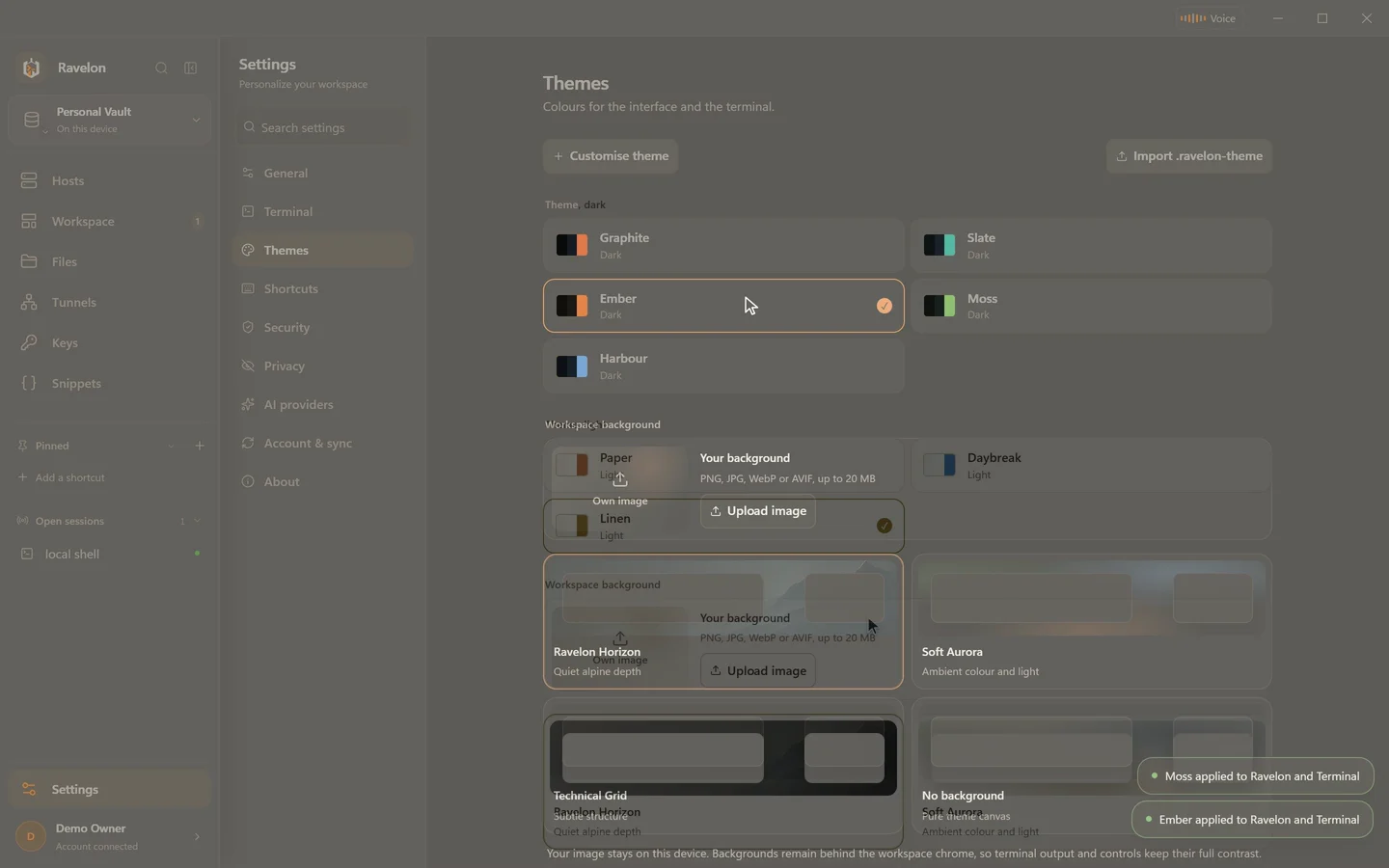
01
One theme for the whole window
The interface, terminal panes and file browser all share one palette. Eight themes come built in, light and dark. In System mode, you pick one theme for light and one for dark, and when your desktop switches, Ravelon switches with it.
- Any accent colour, from the colour picker or as a hex code
- A theme editor for every colour, with .ravelon-theme import and export
- A workspace background: built in, none, or your own image
- Zoom, density and corner radius for the whole interface
02
Every shortcut is yours
You can rebind every command in the settings. Shortcuts are saved with a neutral modifier that turns into ⌘ on macOS and Ctrl on Windows and Linux, so one keymap works on all your machines. If you grab a combination that's already taken, the other command loses it instead of being silently shadowed. F1 opens a searchable list of every shortcut.
Tabs work the way you're used to: Mod+T opens one, Mod+Shift+T brings back the last one you closed with its layout and hosts, and Mod+1 to Mod+8 jump straight to a tab. Shortcuts work with German and other keyboard layouts, and the settings search finds any option in any tab, in English or German.
“One keymap that feels native on every machine.”
03
Hosts you recognise at a glance
Give a host an icon from the built-in catalogue, or use your own PNG, JPG, WebP or SVG up to 2 MB. Ravelon converts it on your device and keeps it in the vault, so it shows up offline too. Colours, tags and favourites do the rest, and pinned sidebar shortcuts keep the hosts and saved workspaces you open most one click away.
“The database server looks like a database server, even offline.”
04
A terminal that's easy on your eyes
Pick the terminal font, size, weight, letter spacing and line height, the cursor shape and how much scrollback to keep. A single host can have its own font and size. The interface follows your system language, English or German.
“Eighty columns stay eighty columns, in the font you read best.”
FAQ
Frequently asked questions
Can I share my theme?
Yes. Export it as a .ravelon-theme file and import it on another machine, or send it to a colleague.
Do my settings and shortcuts sync?
Yes. Settings live in the encrypted vault, so with sync they follow you to your other devices, where the neutral modifier becomes ⌘ or Ctrl as needed. A custom background image stays on the device you picked it on.
Can I use my own background image?
Yes: PNG, JPG, WebP or AVIF up to 20 MB. It stays on the device where you picked it.
Which languages does Ravelon support?
English and German. By default the app follows your system language, and you can switch it in the settings.
Get started
Try it in your own workspace.
On one device the desktop app is free, with nothing held back: the encrypted vault, terminal, SFTP and the assistant are all included.
What else Ravelon can do
Workspaces
Shells, remote desktops and agents side by side in tabs and splits.
Autocomplete & AI help
Grey-text suggestions from your history, # commands and Ask AI on any output.
Snippets & palette
Commands you use over and over, with variables, one search from the terminal.
SSH terminal
SSH with your passwords and keys kept in an encrypted vault.