Autocomplete
The next command, already typed for you.
As you type at the prompt, Ravelon shows the most likely completion as grey text after the cursor. Press → to take it. It never runs anything for you.
01
Suggestions from what you already use
Suggestions come from your encrypted command history (it stays on this device), the snippets in your vault, built-in specs for commands and their options, and local or remote paths. What you ran recently comes first. None of it needs an AI provider.
- → inserts the grey suggestion without running it
- ↓ and ↑ pick another one, Enter inserts it
- Esc hides the list until the next command, Ctrl+Space opens it
- Tab stays with your shell's own completion
- Automatic, on demand or off, your call
02
Quiet where it should be
Suggestions stay out of the way while a program you started is running, inside full-screen programs, and at password, passphrase, one-time code, token and PIN prompts. Commands that look like they contain a secret never go into the history, and you can clear the history in the settings whenever you like.
If your shell emits OSC 133 prompt marks, Ravelon follows them exactly. Otherwise it recognises the usual bash, zsh (oh-my-zsh too), fish, PowerShell and cmd prompts, and local Windows terminals complete Windows paths.
“What you type at a password prompt never ends up in your history.”
03
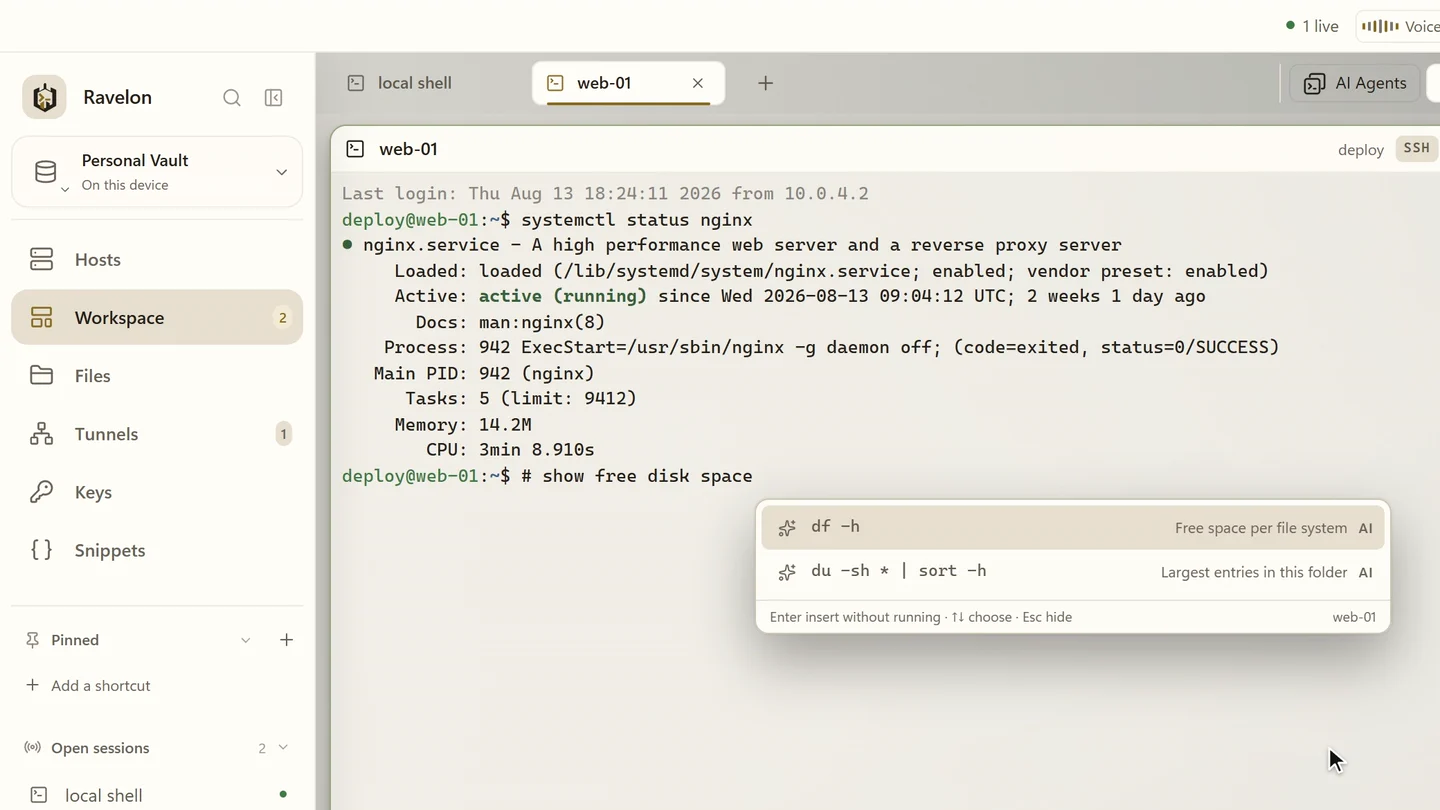
Describe it with #
Type # at the prompt and then what you need, like # find the largest files here. Ravelon suggests matching commands, → or Enter puts one on the line, and whether you press Enter is up to you. Before anything goes to your AI provider, Ravelon strips secrets from the request and the recent output, and it never offers commands it classifies as blocked.
“# find the largest files here. One Enter away, never sent without you.”
04
Ask about any output
Select some output in a terminal and press ⌘J on macOS or Ctrl+J on Windows and Linux to ask what it means or what to run next. Ask AI plays by the same rules as the Ravelon Agent: secrets are removed, and nothing runs without you.
You pick the model and the provider, and provider credentials stay on this device.
- OpenAI or Anthropic API
- OpenAI- or Anthropic-compatible endpoints, including a local model
- Your Codex or Claude Code subscription
- A connection test for every provider profile
FAQ
Frequently asked questions
Does autocomplete need an AI provider?
No. Suggestions from your history, snippets, command specs and paths work without one. Only # suggestions and Ask AI need a provider.
Does Tab accept a suggestion?
No. Tab belongs to your shell's own completion, and Ravelon reads the completed line back from the screen. Press → to take Ravelon's suggestion.
Can I use a local model?
Yes. Add an OpenAI-compatible profile that points at a model on your own computer, for example Ollama on localhost. Remote endpoints have to use HTTPS.
Is my command history synced?
No. The history is encrypted and stays on this device, kept separately for each vault. Snippets, which you save on purpose, do sync with the vault.
Can an administrator switch the AI features off?
Yes. A machine policy can turn off AI providers, the Ravelon Agent and # suggestions for everyone on that computer.
Get started
Try it in your own workspace.
On one device the desktop app is free, with nothing held back: the encrypted vault, terminal, SFTP and the assistant are all included.
What else Ravelon can do
Ravelon Agent
An AI agent that plans server tasks and waits for your click.
Snippets & palette
Commands you use over and over, with variables, one search from the terminal.
SSH terminal
SSH with your passwords and keys kept in an encrypted vault.
Themes & shortcuts
Eight themes, your accent colour, your shortcuts and your host icons.