SFTP
Files and shell, side by side.
Open the file view straight from a connected host. It logs in with the same credentials as the terminal, so there's no second program and no second login.
01
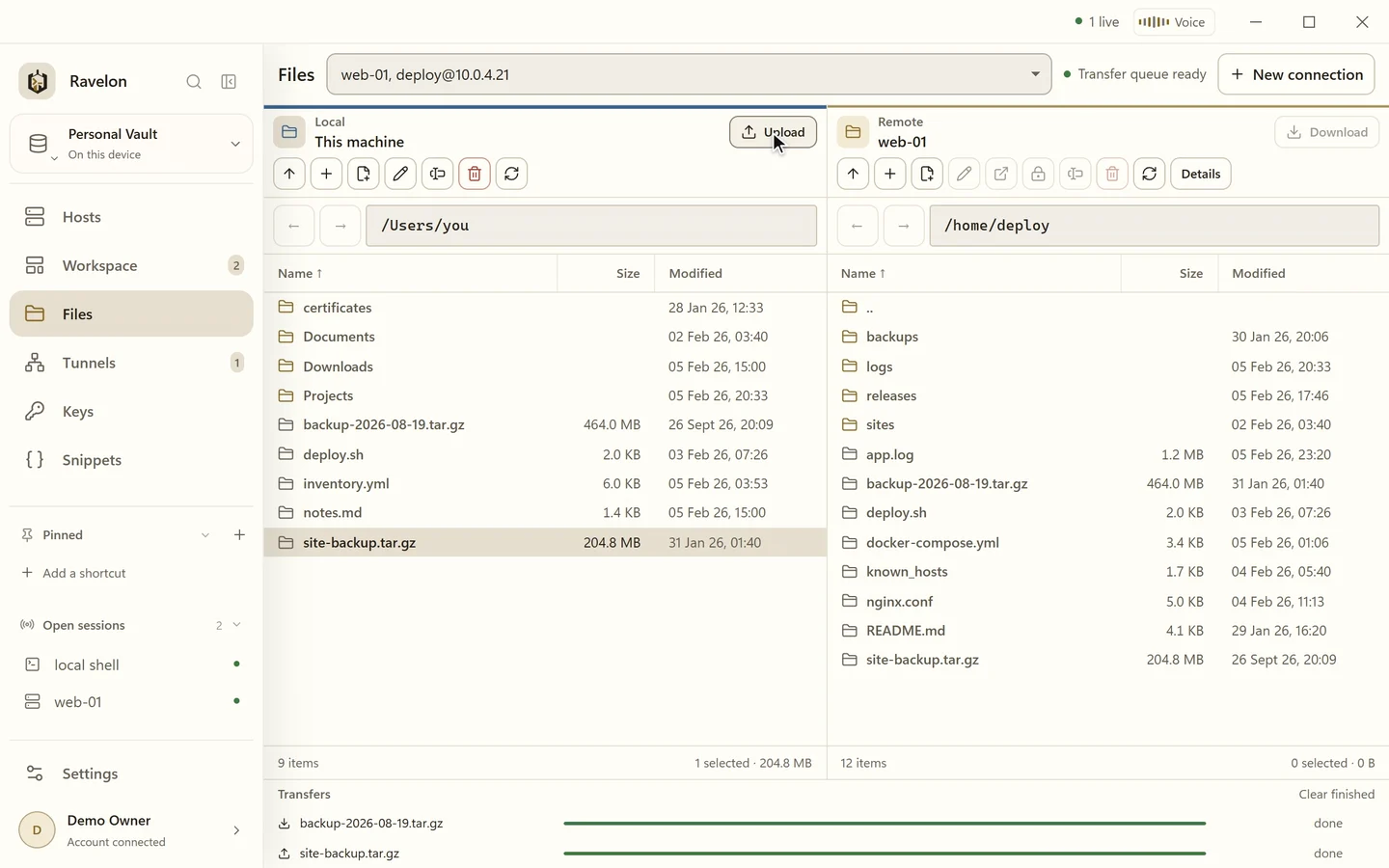
Local and remote files side by side
Your local folders on one side, the server on the other. Size, permissions and modification time are right there in the list. Upload, download, create folders or delete remote files without leaving the view.
“Run a command in the shell and see what it did to the files right next to it.”
02
Use the SSH setup you already have
SFTP takes the saved host, the credentials and the fingerprint you already approved from your SSH setup. You open the server's files from the same host entry you use for the shell.
- Same identities and keys as SSH, nothing to set up twice
- Permissions, size and modification time for every entry
- Runs on the SSH session that's already connected
- Back and forward, a details pane, new files and folders, rename
- Drag files and folders in from Windows Explorer
03
Transfers that survive a dropped link
Several files go at once, and if a transfer gets cut off, it picks up where it stopped instead of starting over. When files already exist on the other side, Ravelon asks you once: replace, resume or skip. Not once per file.
- Parallel transfers
- Resume interrupted uploads and downloads
- One replace, resume or skip question, not one per file
- Modification times stay as they were
04
Edit and fix permissions in place
Fix permissions on remote files and folders with chmod, right in the file browser. Open a server file in your default program and every save goes straight back up. If someone changed the file on the server in the meantime, Ravelon keeps your copy and overwrites nothing.
For small text files up to 1 MiB you don't even need another program: edit them right in Ravelon.
“Open a config file in your own editor. Every save goes back to the server.”
FAQ
Frequently asked questions
Do I need separate credentials for SFTP?
No. SFTP logs in with the same vault identity as the host's SSH sessions.
Does the file browser reuse my SSH connection?
Yes. It uses the connection that's already open and the identity you picked, so there's nothing extra to set up for file access.
Can an interrupted transfer resume?
Yes. Pick resume when Ravelon asks about the existing file, and the transfer carries on from where it stopped.
Can I edit a remote file in my own editor?
Yes. Open it in your default program and every save is uploaded. If the file on the server changed in the meantime, Ravelon keeps your version and leaves the server file alone.
Get started
Try it in your own workspace.
On one device the desktop app is free, with nothing held back: the encrypted vault, terminal, SFTP and the assistant are all included.
What else Ravelon can do
SSH terminal
SSH with your passwords and keys kept in an encrypted vault.
Tunnels & port forwarding
Local, reverse and SOCKS5 forwards, saved with the host they belong to.
Workspaces
Shells, remote desktops and agents side by side in tabs and splits.
iPhone & iPad
Native SSH, SFTP and local tunnels on iPhone and iPad, coming to the App Store.