SSH, RDP and VNC client for Windows, macOS and Linux
Every server.One workspace.
Your shells, file transfers, remote desktops, tunnels and coding agents live side by side in one window. Add a server once, then open it as a terminal, a file browser or a desktop, whatever the job needs.
Buy once, no subscription.Free on one device.
SSH / SFTP / RDP / VNC / tunnels / AI agents / encrypted sync
Protocols
SSH, SFTP, RDP and VNC in one app.
You store the login for a server once, in the encrypted vault, and the terminal, the file browser and your tunnels all use it. No more pasting the same password into three different tools.
Remote desktop
RDP and VNC in the same tabs as SSH.
The Windows server and the Linux box behind it, in one window. Add an RDP or VNC host like any other server and open it next to your shells. There's no gateway in between and nothing extra to install.
- RDP for Windows servers
- Fit the desktop to the pane or let the server match its size. Copy and paste works both ways, print jobs arrive as PDFs on your machine, and you can send Ctrl+Alt+Delete when Windows asks for it.
- VNC that checks certificates
- VeNCrypt with verified X.509 certificates, Apple Remote Desktop login for Macs, and classic VNC for older servers. Every mode is clearly labelled, so you always know how a session is protected.
- Through SSH when you need it
- Pick a saved SSH host under Connect through and the whole VNC session runs inside SSH, with the login and host-key check you already use.
- Beside your terminals
- Desktops open in the same tabs and split panes as your shells. Save the mix as a workspace and open the same layout again tomorrow.
Workspace
Every session, one window.
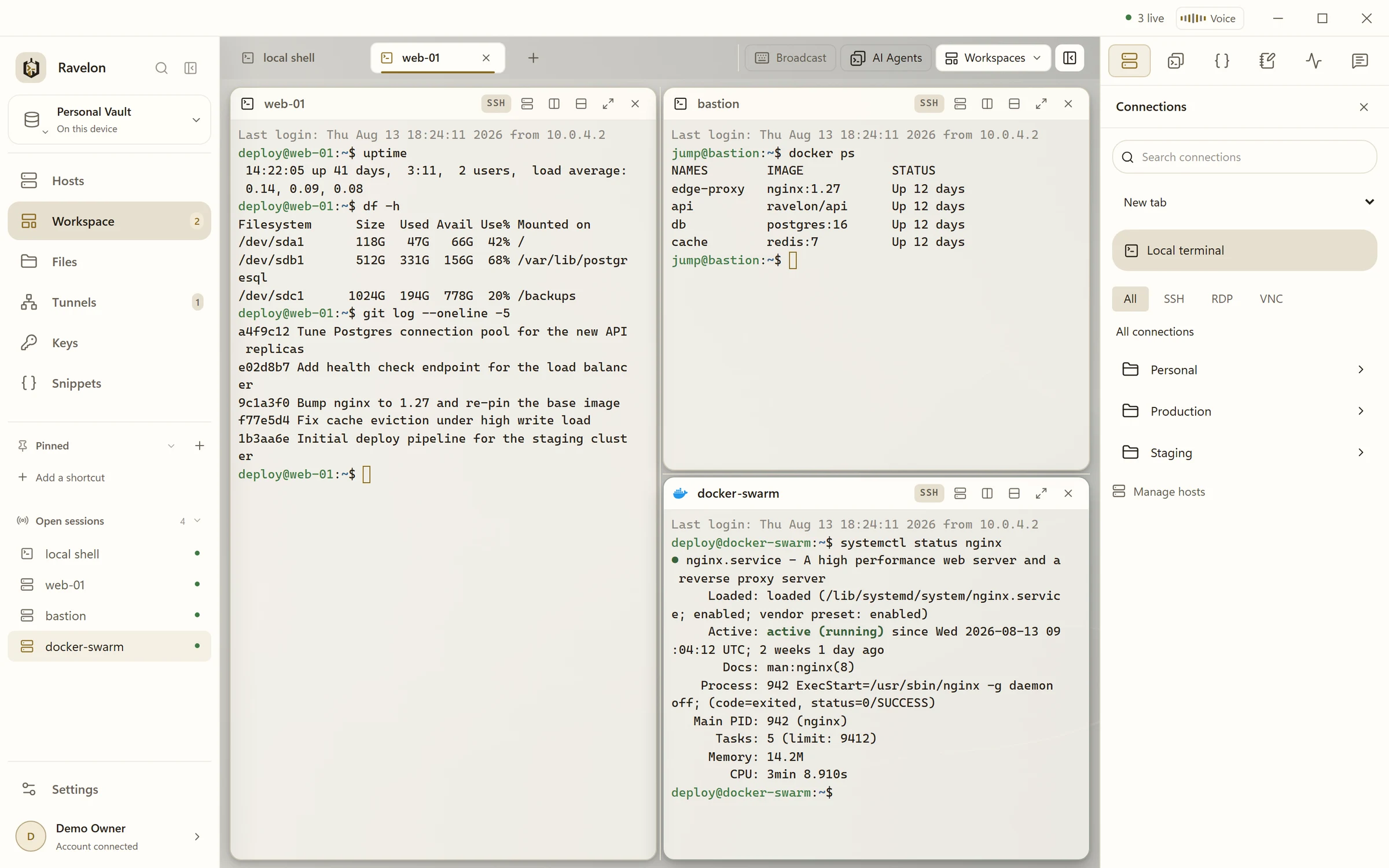
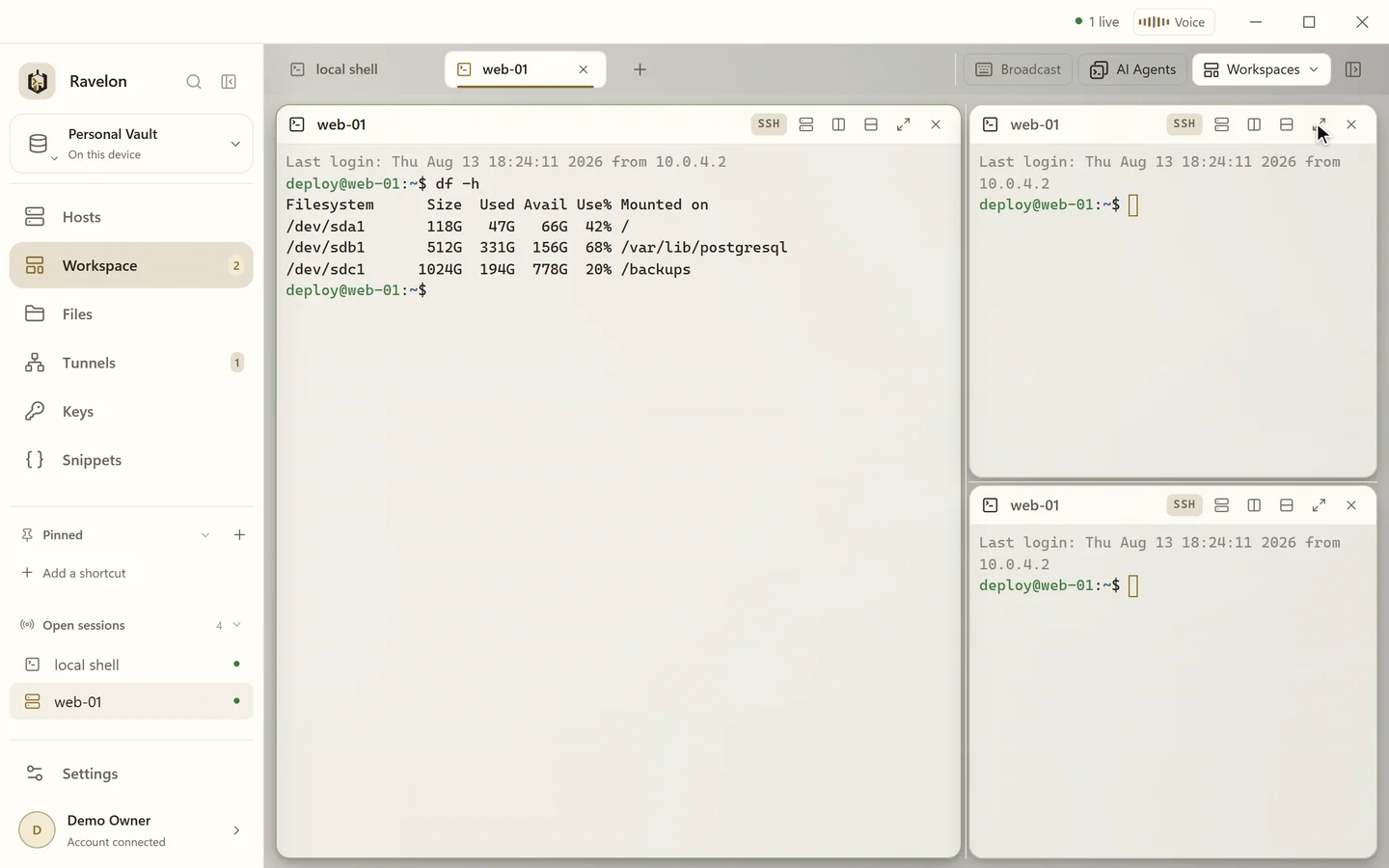
Shells, remote desktops and coding agents share tabs and split panes. Drag and resize them as the job changes, and scrollback and the running command stay right where they were. Save a layout you use every day, and next time Ravelon starts all its sessions for you. It can also bring back the tabs you had open when you quit.
- Tabs
- Split panes
- SSH, RDP and VNC side by side
- Saved workspaces
- Reopen last tabs
- Broadcast input
- Command palette
AI that asks first
An assistant for your servers that waits for you.
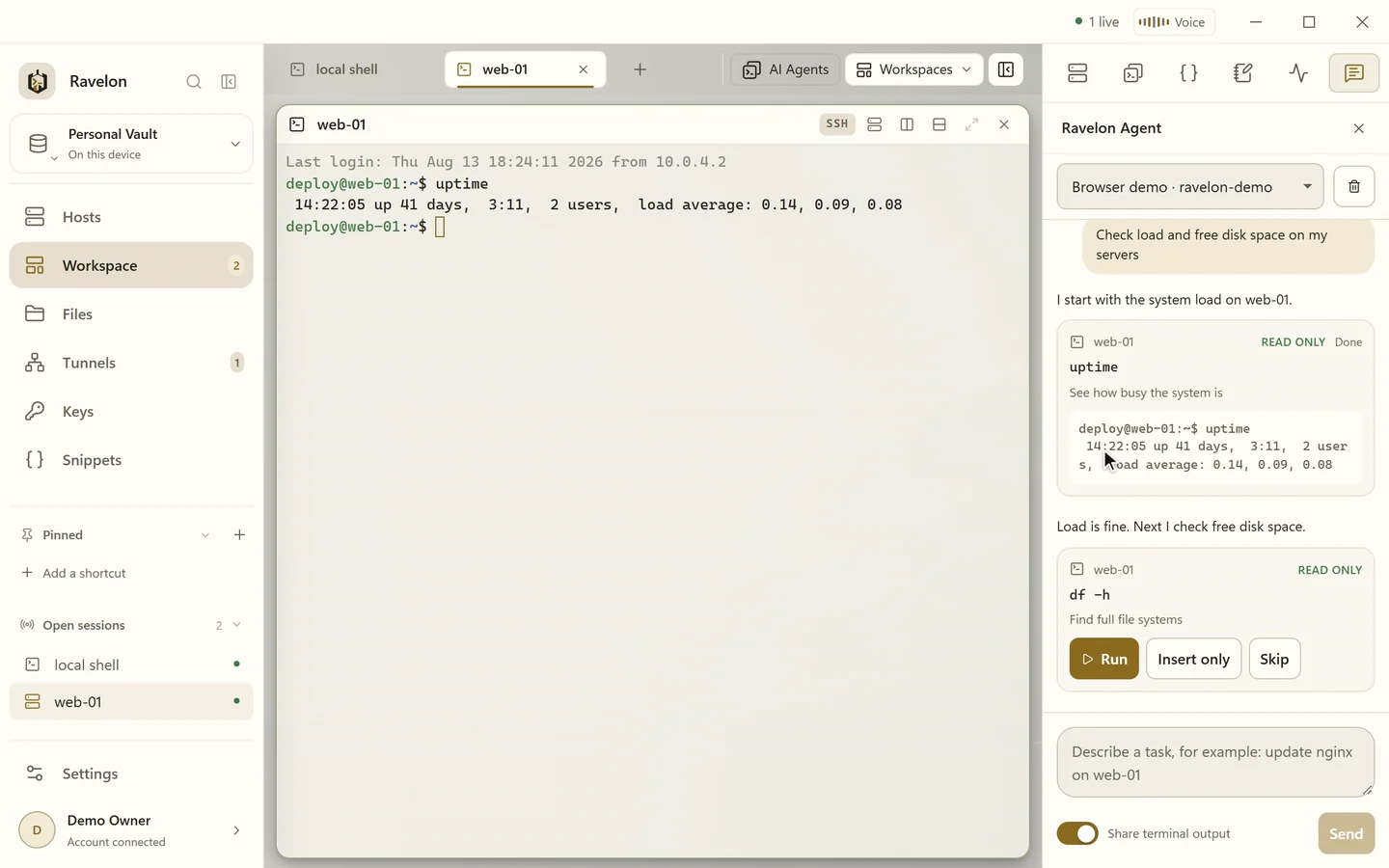
AI in your terminal, without handing it the keys. It suggests commands and explains output, but nothing runs until you say so.
- Ravelon Agent
- Describe a task, say "check disk space on the web servers". The agent knows your hosts and open terminals, suggests commands and works out the next step from the output. Nothing happens without your click, and anything that changes the system needs you to type RUN.
- Autocomplete and # suggestions
- While you type, the likely next command shows up in grey, taken from your history, snippets and paths. Press → to take it. Or type # and describe what you need to get a command suggested. It's inserted, never run.
- Ravelon Voice
- Say "open six Codex panes" or "start the database tunnel". Voice drives the app for you, checks with you before a tunnel starts and never runs a shell command.
- Your model, your keys
- Connect the OpenAI or Anthropic API, a compatible or local model, or your Codex or Claude Code subscription. Passwords and keys are never sent, and Ravelon strips secrets out of terminal output before anything goes out.
AI Agents
Coding agents next to your servers.
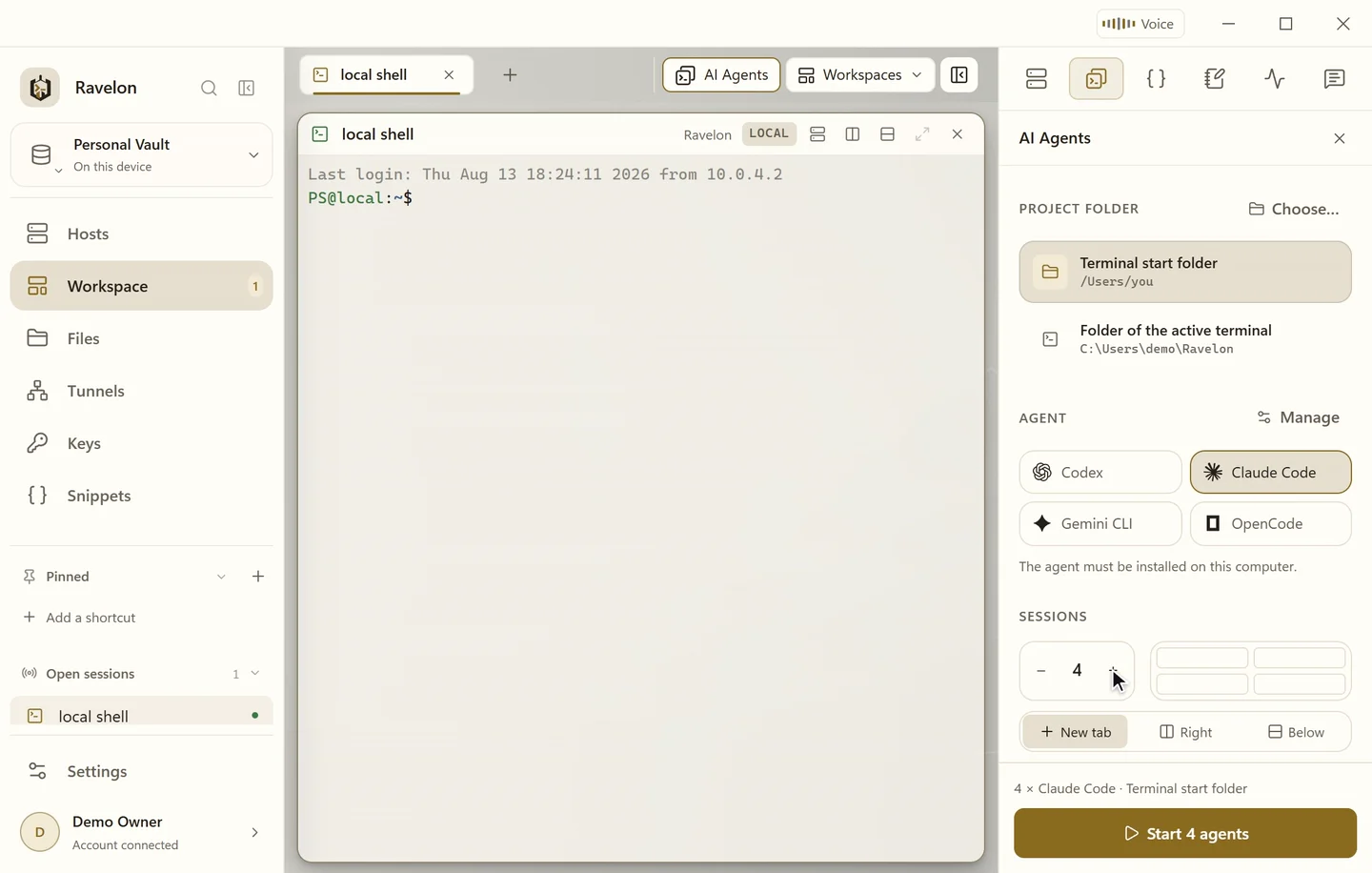
Start a coding CLI in your project folder, in the same window as the SSH session you're keeping an eye on. One keystroke takes you from one to the other.
- The CLI you already use
- Codex, Claude Code, Gemini CLI and OpenCode are ready to pick, and you can add any other CLI with its own arguments and icon. Ravelon starts the copy you already have installed.
- Starts in a project folder
- You pick the folder first. Every agent session starts there, so it sees the repository you meant and nothing above it.
- One to eight at once
- Run up to eight agents side by side in a new tab, or open them next to the SSH or local shell you're already in.
- Separate from your terminals
- When you broadcast keystrokes to a tab, agent panes don't get them. API keys are handed over by the launcher and never get pasted into a terminal.
SFTP
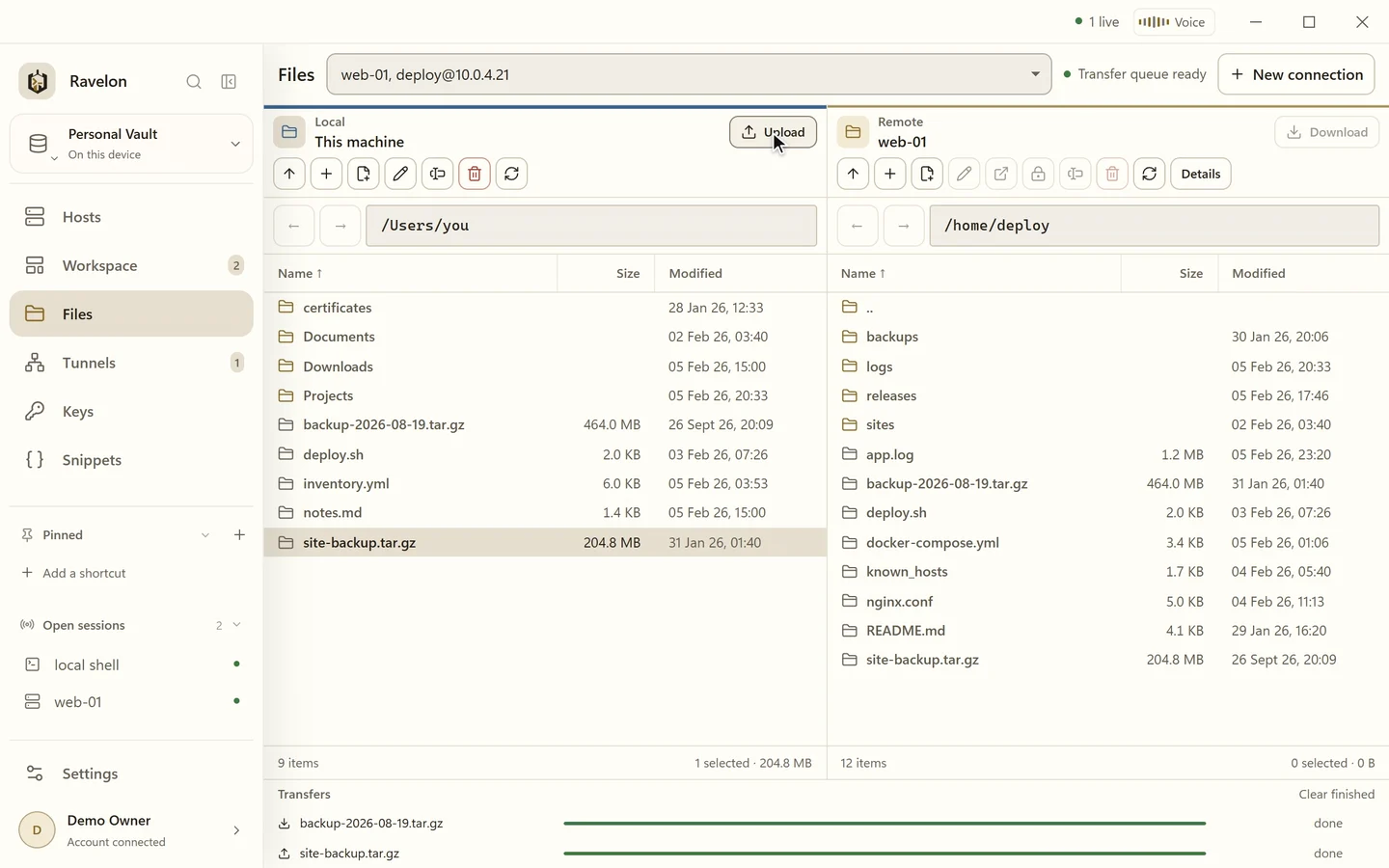
Move files without leaving your session.
Open the file view straight from your SSH connection, no second login. Transfers run in parallel and carry on after the connection drops, and chmod is a click away. Need to tweak a config on the server? Open it in your own editor, and every save goes right back up.
Tunnels
Forwards you save once and start with a click.
A forward belongs to a host, so Ravelon saves it right there as a rule. Start it when you need the port, stop it when you're done, and see at a glance how many connections are going through it.
Local forward
Reach a database or dashboard that only listens on the server's loopback address.
Reverse forward
Make a port on your own machine reachable from the server, handy for a webhook or a callback.
SOCKS5 proxy
Point your browser at one local port and reach the internal network behind the host.
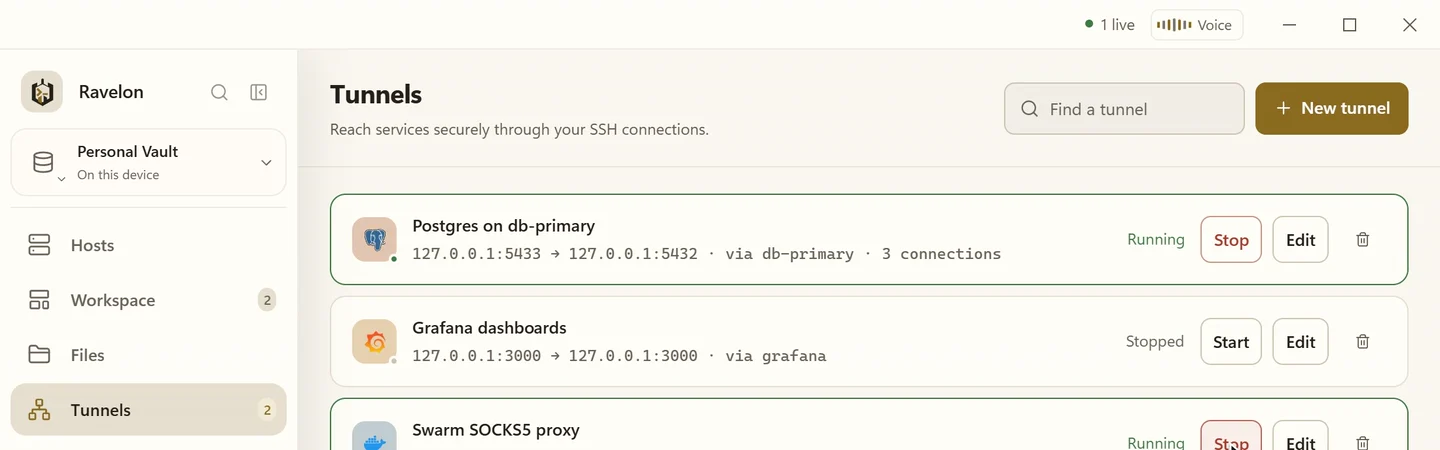
Terminals, the file browser and every tunnel to the same host share one connection and one login. That helps on servers that only allow a few sessions at a time.
Command snippets
Save recurring commands once.
Give a command a name you'll recognise and a few tags if you like. Next time, find it on the Snippets page or in the command palette and drop it into the active terminal. Snippets are pasted, not run, so you get one more look before you hit Enter.
- Snippets
- Tags
- Search
- One-click copy
- Command palette
- {{variables}}
- Encrypted storage
- copy
Follow API logs
docker logs --tail 200 -f api - copy
Service status
systemctl status nginx - copy
Recent journal
journalctl -u ssh --since "30 minutes ago" - copy
Disk overview
df -h && du -sh /var/log/*
While you work
CPU, memory and processes beside the session.
On a Linux host, the workspace sidebar shows CPU, memory, file systems and the busiest processes. It refreshes every few seconds, only reads, and you can pause it. Right next to it are your notes for that host, say a runbook or the next maintenance window, encrypted in the vault and synced along with it.
- CPU & load
- Memory & swap
- File systems
- Top processes
- Host notes
- Read-only
- Linux hosts
Vault & Sync
Your vault on every device, still encrypted.
Ravelon encrypts your vault on your computer before anything syncs. With Pro, your other devices receive that encrypted copy and only open it on the device itself.
- Encrypted on your device
- Hosts, logins, keys and passwords are encrypted right on your device, before they go anywhere.
- Sync with Pro
- Add a host on your laptop and it shows up on your other approved devices, settings included.
- Device pairing
- A new desktop gets nothing until you approve it in your browser.
- Only encrypted data on the server
- The sync server keeps the encrypted copy and nothing else. It has no key to open it.
If you'd rather keep it in-house, run Ravelon Sync, the free open-source sync server, on your own infrastructure. Like Ravelon Cloud, it only stores ciphertext.
Appearance
Your theme and your shortcuts.
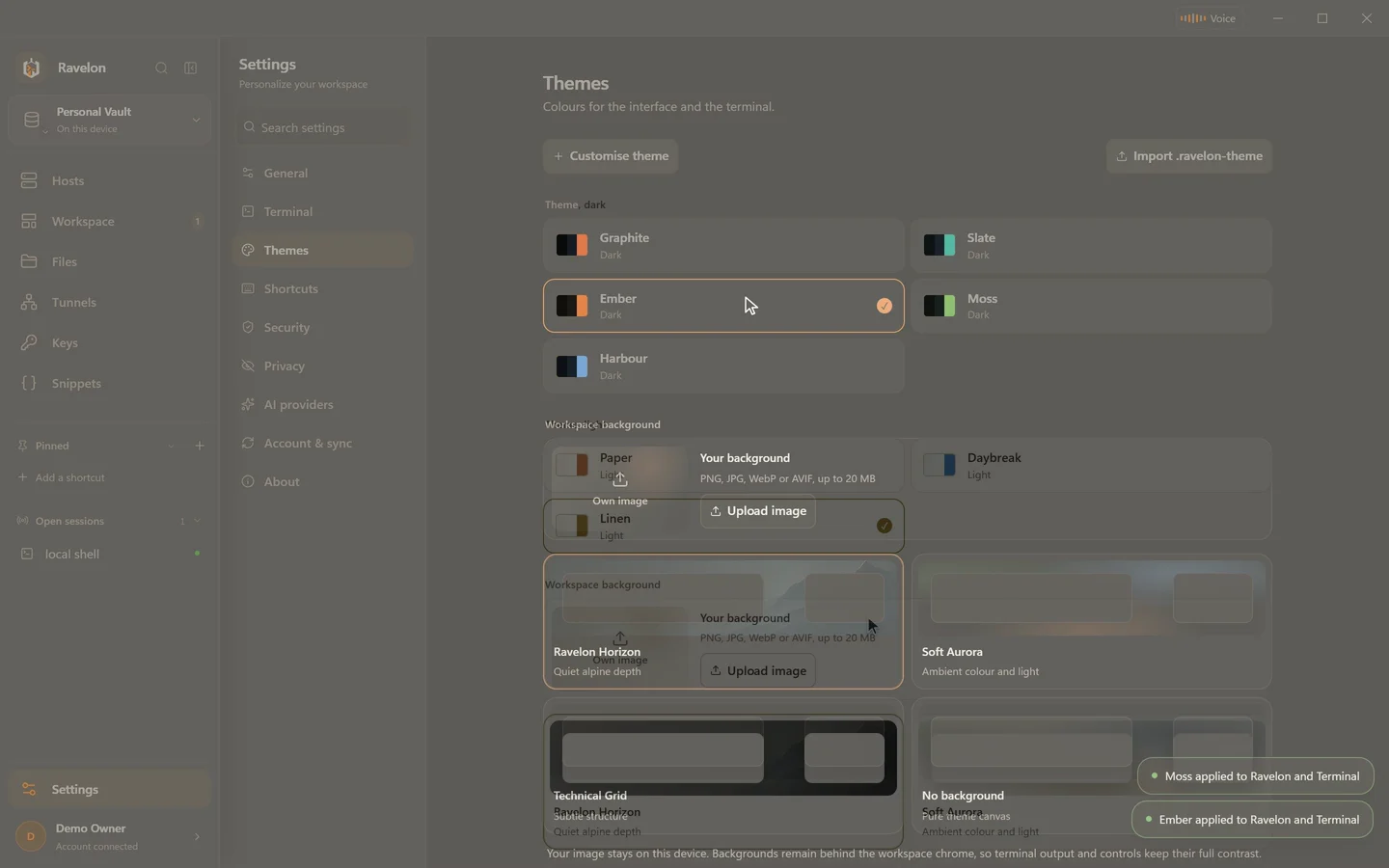
Pick a theme, let it follow your system's light and dark mode, and set up your shortcuts the way you're used to.
- One theme for the whole app
- The interface, your terminals and the file browser all share one theme. Eight come with the app, light and dark. Pick any accent colour, tweak every other colour, and take your theme to another machine as a .ravelon-theme file.
- Follows your system
- In system mode you pick one theme for light and one for dark. When your desktop switches, Ravelon switches with it, no settings to touch.
- Every shortcut rebindable
- Put any shortcut where your fingers expect it. Your keymap syncs between machines and uses Command on a Mac and Ctrl everywhere else, so it feels right on each one. F1 lists them all.
- Hosts with a face
- Give each host an icon from the catalogue or your own image, a colour and some tags, and pin the ones you open most to the sidebar. The command palette finds all of it from the keyboard.
And there's more
The small things that save time every day.
The little jobs around an SSH session shouldn't need three extra programs. In Ravelon they sit right next to the server they belong to.
Security
Credentials stay on your device.
Your passwords and keys are encrypted on your computer, every server has to prove who it is, and a new desktop needs your OK before it syncs anything.
Check a server's fingerprint on first connect.
Ravelon shows you the algorithm and the SHA-256 fingerprint, along with the command that prints the same value on the server, so you can compare the two. Approve it once and Ravelon remembers it.
If the fingerprint changes later, you get a different-looking dialog with differently worded buttons. From the client's side, a freshly rebuilt server and someone intercepting the connection look exactly the same. So this is one prompt you can't easily click away out of habit.
01
Local encrypted vault
The vault is sealed with AES-256-GCM. By default its key sits in a file right next to it. If you'd rather lock it yourself, use your account password or a master passphrase.
02
End-to-end encrypted sync
Your vault only moves between your devices in encrypted form.
03
Credentials stay protected
The app's interface never reads your passwords or private keys. All it knows is whether they're there.
04
Known hosts
Ravelon remembers the fingerprints you approved and warns you before it connects if one of them changes.
05
Device pairing
A new desktop only gets into your account after you approve it in the browser.
06
No plaintext on server
Our servers get your data encrypted, never the key that opens it.
07
Safer vault saves
Ravelon writes the new vault file completely before it replaces the old one, so a crash mid-save is less likely to break anything.
08
Locks when you leave
If your vault has a password or passphrase, it locks itself after 5 minutes to 4 hours without input. Copied passwords are gone from the clipboard after 30 seconds.
Coming from another client
Already using Termius, Warp or PuTTY?
Nine comparisons that show what Ravelon brings to your work and how quickly your hosts move over. Ravelon is free on one device, so you can start today and switch at your own pace.
Download
Download Ravelon for Windows, macOS and Linux.
Pick your system and go. Windows and Linux come for both x86_64 and ARM64, Linux also as a .deb or .rpm package if you'd rather not use the AppImage. On a Mac, Ravelon runs natively on Apple silicon and Intel.
Released Sep 30, 2026
Downloads are available.
iPhone & iPad
Coming soonNative iPhone and iPad app, coming to the App Store: SSH, SFTP and local tunnels, with your personal vault synced end-to-end encrypted. What the iOS app can do
What's new in v0.12.2
Important
- After updating, the sidebar shows icons only and names appear on hover. To bring back the wide sidebar with names, go to Settings → General → Interface → Sidebar, or click the expand button at the top of the sidebar.
- Settings now open from your avatar at the foot of the sidebar, or as before with ⌘9 on macOS or Ctrl+9 on Windows and Linux.
New
- A browser pane shows web pages right next to your terminal, for example a development server on localhost:3000. Open it with Browser in the tab strip or from the command palette. Pages that do not allow embedding open in your own browser with one click.
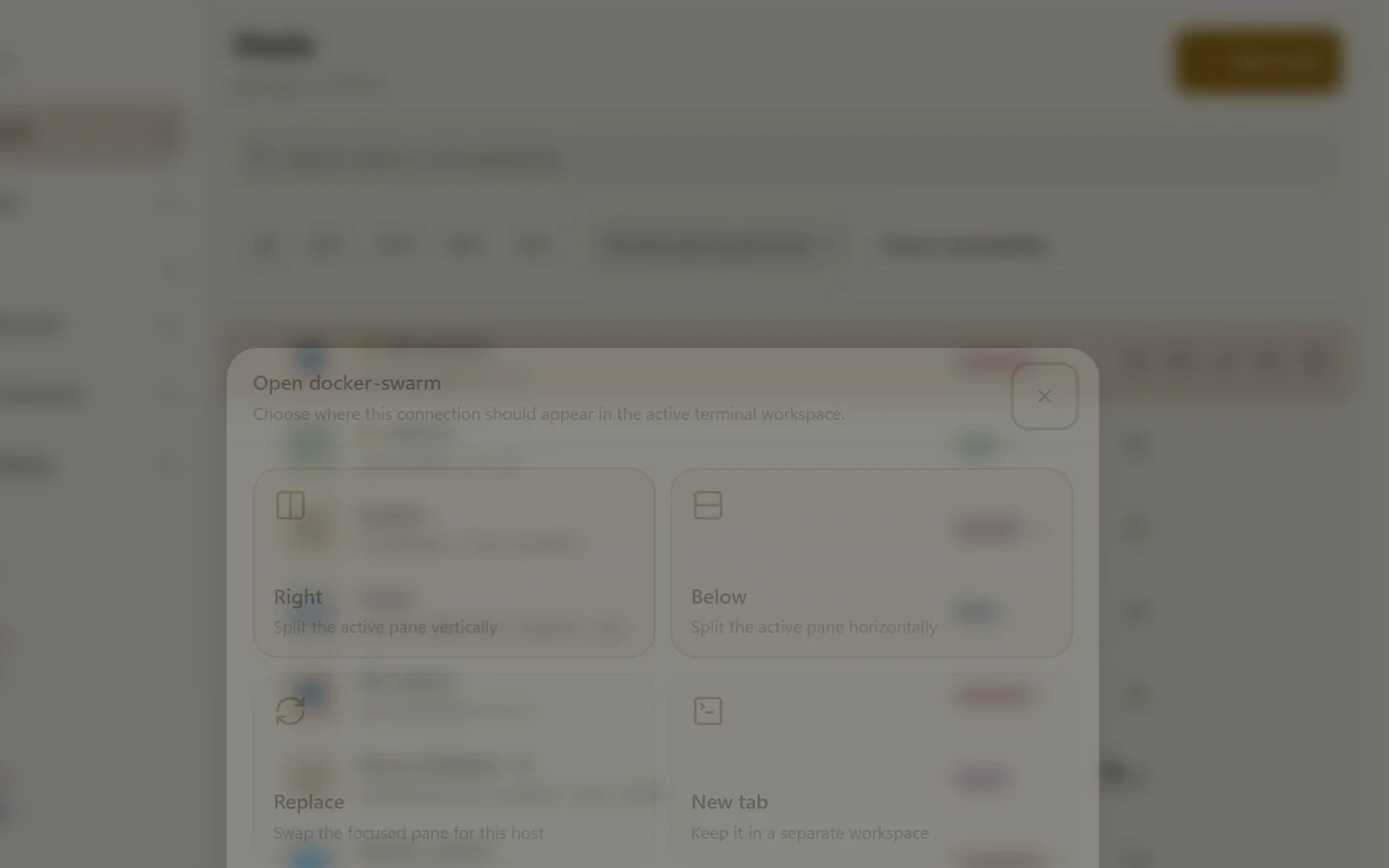
- Right-click a host for a menu: connect, open in a new tab or beside the active pane, browse files, copy the SSH command or the address, pin, edit, duplicate and delete. Shift+F10 opens it from the keyboard.
- The menu behind your avatar brings together account and sync, keyboard shortcuts, updates, documentation, light and dark mode, Settings and signing out.
- The new Ravelon Night and Ravelon Day themes are the default for new installs. You can also pick them under Settings → Themes.
Improved
- In the host search, Enter connects to the highlighted match. Use the arrow keys to pick another one without leaving the field. When you type an address, Enter still connects to exactly that address.
- The search field in the title bar opens the command palette, as does ⌘K on macOS or Ctrl+K on Windows and Linux.
- The tool panel on the right of the Workspace remembers whether it was open, which tool was selected and where new connections open.
- The sidebar, the main area and terminal panes stand apart more clearly, and the active pane has a coloured outline.
Release notes for every version
Ravelon verifies every update before it installs it.
Pricing
Pay once. No subscription.
On one device the desktop app costs nothing. If you want your hosts on more than one, Pro adds encrypted sync through Ravelon Cloud for a one-time price. Or run the open-source sync server yourself with Self Hosted, which is free too.
Free
For one device
Free forever
- Local encrypted vault
- SSH terminal and SFTP
- All desktop features without cloud sync
Pro
RecommendedFor all your devices
€19.90 once
- Everything in Free
- End-to-end encrypted cloud sync
- Hosts and settings on your devices
- Pay once, no subscription
Self Hosted
On your own infrastructure
Free, open source
- Ravelon Sync runs as one container, with SQLite or PostgreSQL.
- End-to-end encrypted: the server only stores encrypted data and has no key for it.
- For teams that keep their credentials in their own network.
- MIT licensed. Read the code, audit it, change it, and run it for as long as you like.
- Comes with accounts, teams, two-factor sign-in and a web admin interface. No licence key, no telemetry.
Get started
Install Ravelon and add a host.
It's free on one device, and sync is a one-time purchase. Add your first server and see how it feels to have everything in one window.